

Confluence
Create, collaborate, and organize all your work in one place. Confluence is a team workspace where knowledge and collaboration meet. Dynamic pages give your team a place to create, capture, and collaborate on any project or idea.
Before setting up
Section titled “Before setting up”You must ensure that you have a Confluence account and access to it. During authentication, you will be redirected to the Confluence login page to authorize the app. Note, this app leverages the Confluence Cloud REST API to provide a streamlined experience for managing your content.
Custom OAuth2 apps
Section titled “Custom OAuth2 apps”If you want to use your custom OAuth2 app to connect, you need to:
-
Go to Atlassian Developer Console.
-
Click Create > OAuth 2.0 Integration.
-
Name your app for future reference, read and agree to be bound by Atlassian’s developer terms and click Create.
-
Go to Authorization and click Add for the OAuth 2.0 (3LO) authorization type.
-
In the Callback URLs field, specify
https://bridge.blackbird.io/api/AuthorizationCodeand click Save changes. -
Go to Permissions, find Confluence API and click Add.
-
Click Configure and set the scopes you want to use. Currently, our app supports these scopes:
- Classic scopes tab:
write:confluence-content read:confluence-space.summary write:confluence-space write:confluence-file write:confluence-props read:confluence-props manage:confluence-configuration read:confluence-content.all read:confluence-content.summary search:confluence read:confluence-content.permission read:confluence-user read:confluence-groups write:confluence-groups. - Granular scopes tab:
read:content:confluence write:content:confluence read:content-details:confluence read:space-details:confluence delete:content:confluence read:page:confluence write:page:confluence delete:page:confluence read:attachment:confluence read:custom-content:confluence write:custom-content:confluence delete:custom-content:confluence write:comment:confluence delete:comment:confluence read:template:confluence write:template:confluence read:space:confluence read:content.permission:confluence read:content.property:confluence write:content.property:confluence.
If you don’t need to configure your own scopes, simply copy and paste all the beforementioned ones.
- Classic scopes tab:
-
Go to Settings > Authentication details and copy
Client IDandSecretvalues.
Connecting
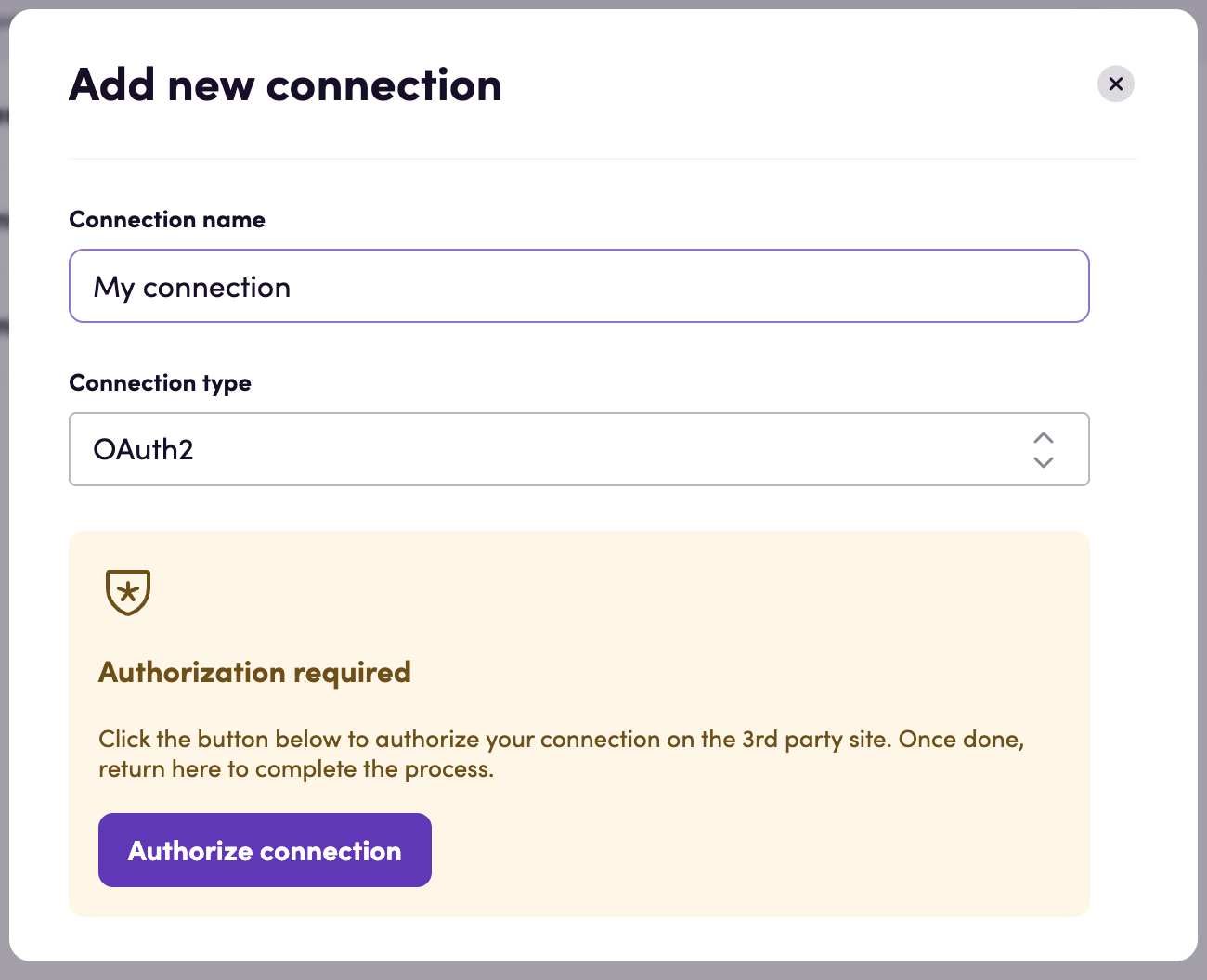
Section titled “Connecting”Navigate to Apps search for Confluence. Click Add Connection and name it for future reference e.g. ‘My connection’.
OAuth2
Section titled “OAuth2”- Select the OAuth2 connection type from the dropdown.
- Click Authorize connection.
- Follow the instructions that Confluence gives you.
- Confirm that the connection has appeared and the status is Connected.
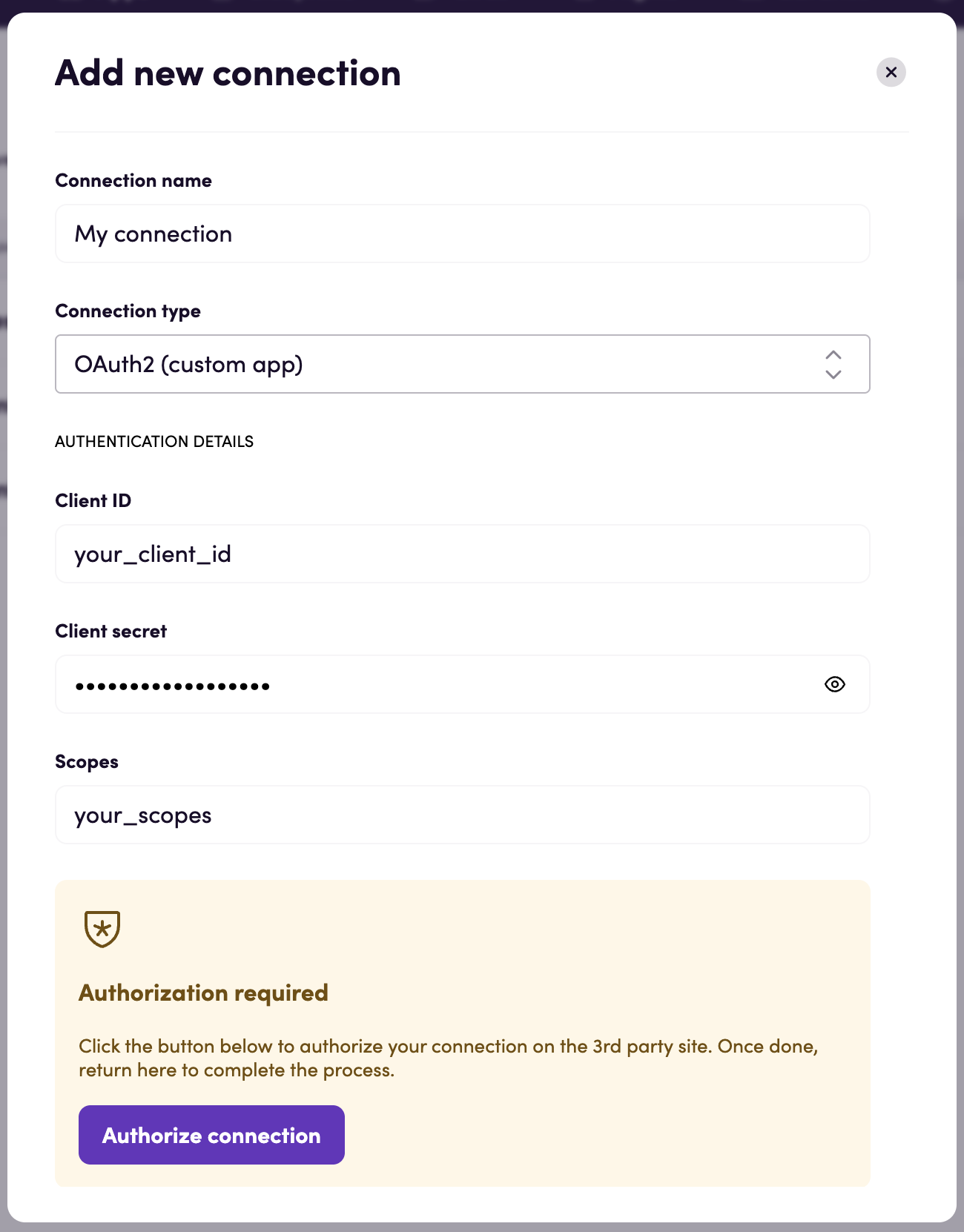
OAuth2 (custom app)
Section titled “OAuth2 (custom app)”- Select the OAuth2 (custom app) connection type from the dropdown.
- Fill in Client ID, Client secret and Scopes that you obtained before.
- Click Authorize connection.
- Follow the instructions that Confluence gives you.
- Confirm that the connection has appeared and the status is Connected.
Actions
Section titled “Actions”Content
Section titled “Content”- Search content - Returns a list of content that matches the search criteria.
- Get content - Returns a single content object specified by the content ID.
- Get content as HTML - Returns a single content HTML specified by the content ID.
- Update content from HTML - Updates a content from HTML file.
- Create content from HTML - Creates a content from HTML file.
- Create content - Creates a new content with specified data.
- Delete content - Deletes a content specified by the content ID.
- Download page - Downloads a Confluence page as HTML file.
Page proeprties
Section titled “Page proeprties”- Search page properties - Lists page properties.
- Get page property - Gets a specific page property.
- Set page property - Creates or updates a page property.
Events
Section titled “Events”- On content created - Polling event. Triggered after specified time interval and returns new content.
- On content updated - Polling event. Triggered after specified time interval and returns updated content.
Error handling
Section titled “Error handling”Our app returns errors in a structured format. Below are the typical error responses you might encounter:
Status code: {Status code}, Message: {Message}
- Status code: The HTTP status code associated with the error.
- Message: A brief message describing the error which we get from the Confluence API.
If you encounter an error, please try to resolve it using the information provided in the error message. If you are unable to resolve the error, please contact us for further assistance.
Feedback
Section titled “Feedback”Do you want to use this app or do you have feedback on our implementation? Reach out to us using the established channels or create an issue.