

The Blacklake Interface
💡 You can try Blacklake today. Contact us if you want to participate.
This guide assumes you understand the Blacklake Key Features. See the Blacklake App on how Blacklake can be put to work in Birds.
Signing in and managing Lakes
Section titled “Signing in and managing Lakes”The Blacklake UI can be accessed at blacklake.blackbird.io. To connect to your Blacklake server, use the same URL and Key that were used to connect the Blacklake App.
After connecting, you will be presented a panel to manage Lakes. Here you can create new Lakes and delete Lakes (right click delete).
Every Lake in Blacklake is a separate database. You can think of a Lake as a complete brand identity across multiple languages. Most enterprise customers that are managing a single brand will only need one Lake while Language Service Integrators or other companies managing different brands will want to create a Lake for each.
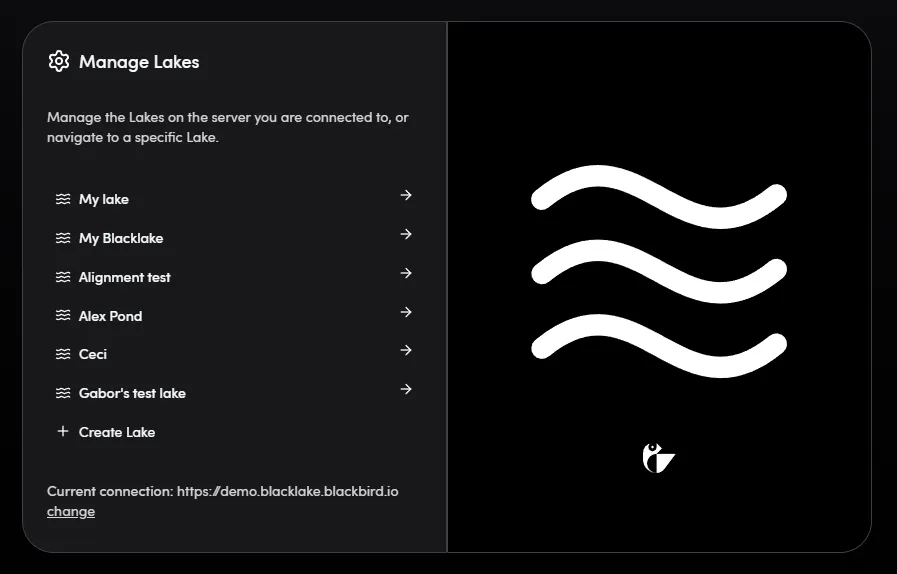
You can open a Lake by clicking on it. By clicking on your Lake in the top left corner you can switch Lakes.
Managing Variants
Section titled “Managing Variants”Content stored in Blacklake is assigned a Variant. A Variant could be as simple as a different language, but it can be much more than that! It could be a locale (language + country) or an even more specific target audience or vertial (Think English for iPhone users). How granular you can go with Variants mostly depends on the CMS or platform your content is hosted on. Just know that Blacklake is very flexible in this regard!
You can create new Variants by clicking “New Variant”. If content is sent to Blacklake with (language) codes that it hasn’t seen yet a new Variant will automatically be created.
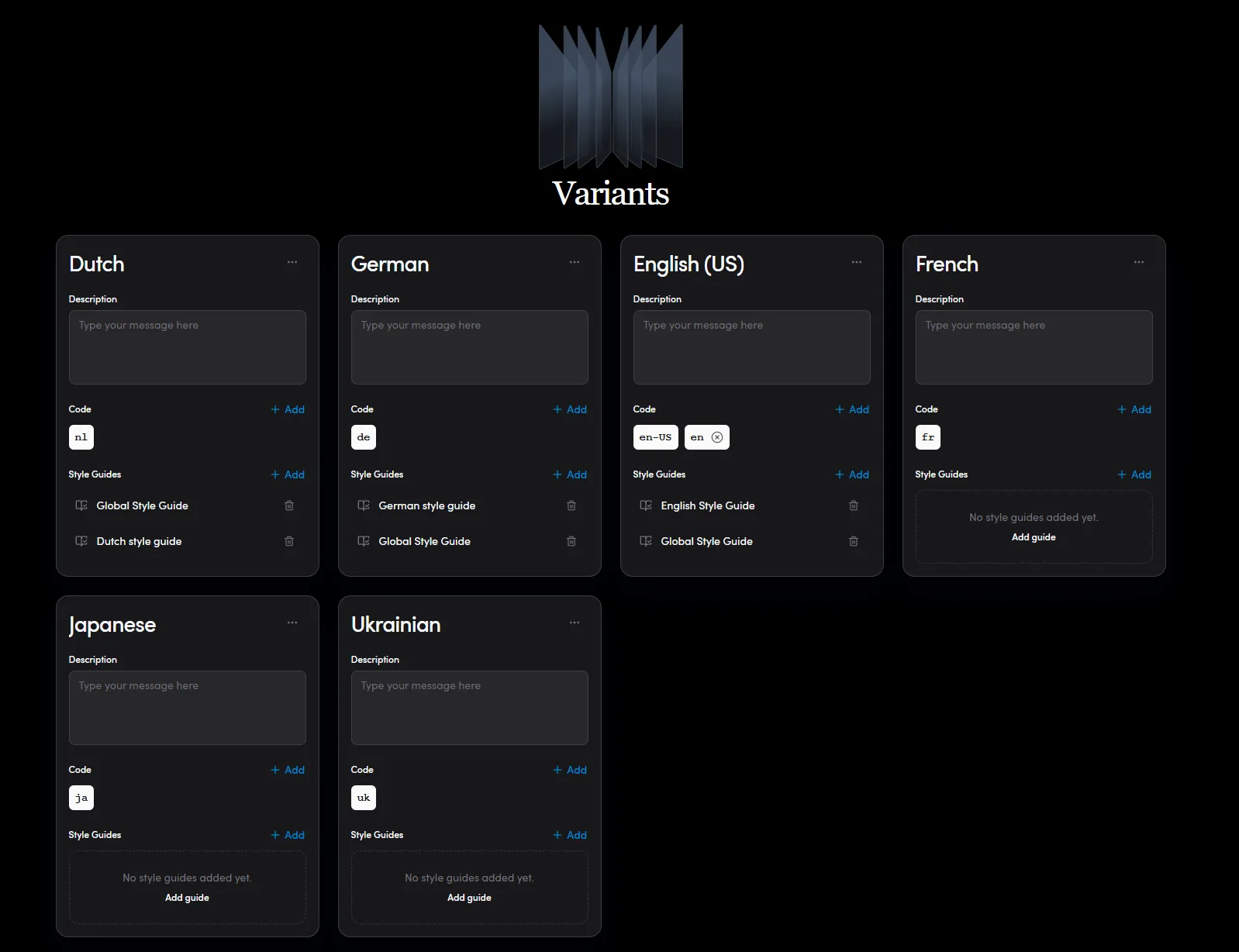
You edit the name and description of a Variant. You can also add additional codes, this is useful if your Variants are hosted accross different source systems that use different codes. You can also add Style guide rules here that will be added any time you use the “Prepare Content” Action in Blackbird.
While we are still rapidly adding new features to Blacklake, some of these sections may be moved to a different place in the future
Viewing Content
Section titled “Viewing Content”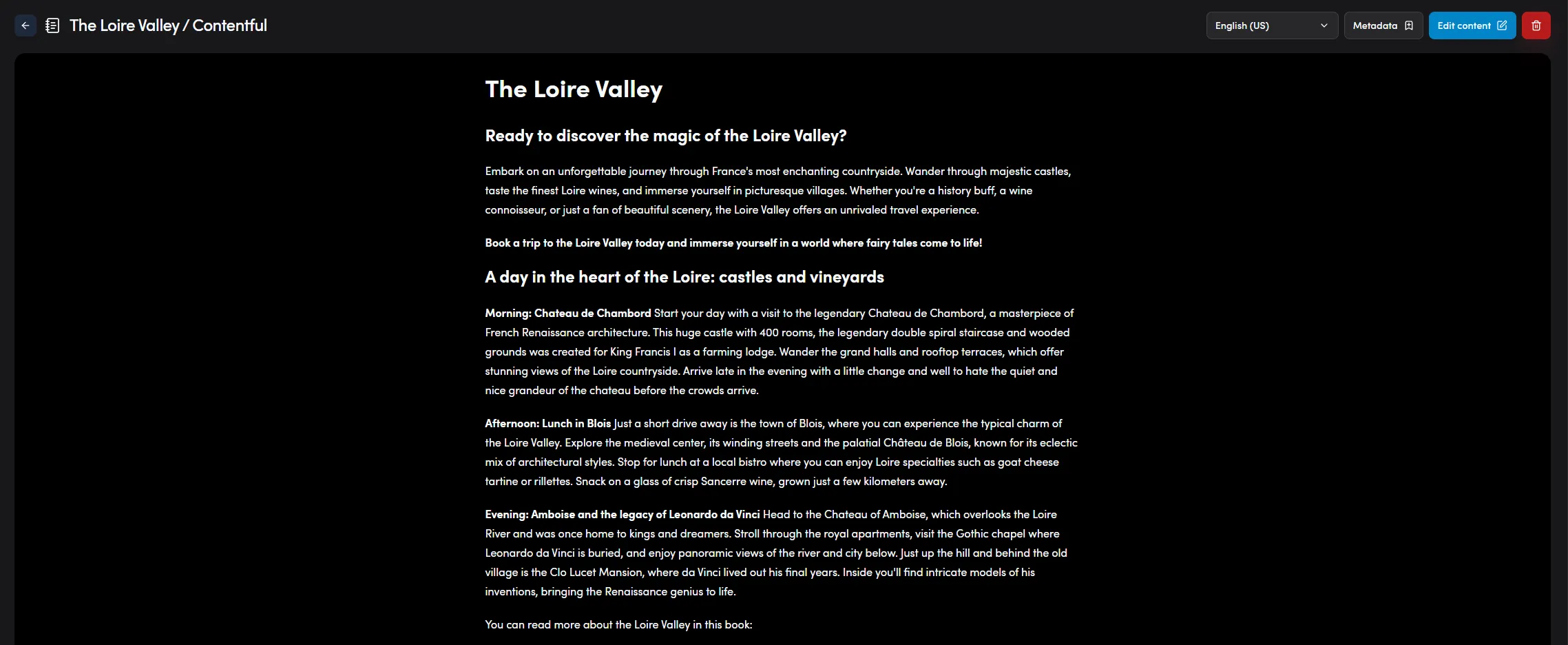
When navigating to a particular piece of Content, Blacklake (but mostly made possible by Blackbird) will try its best displaying the content to you as if viewed by an end-user. In the top bar you will see some navigational options. Here you can switch between different Variants of the same content, view the metadata that has been attached, a link to the content “in the real world” (if applicable) and a link to where the content can actually be edited in-context.

When hovering over the text you will be able to inspect the distinct textual units. If Blackbird was used to create the bilingual files then this segmentation will take place on a paragraph level or otherwise clearly distinguishable unit level.
Clicking on a text unit will open more information about this unit. Here you can inspect the original source text and the history of this unit. E.g. how did this unit change over time?
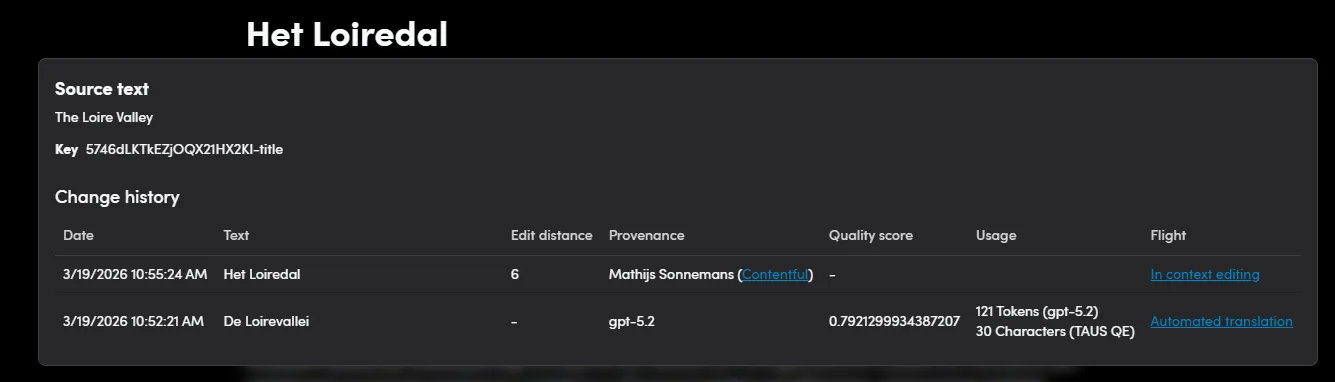
In this example we can see how a unit was first created by a certain tool without any review or quality attached. Later someone made an edit to this particular unit in-context, meaning in the actual tool this content is stored!
As you can see, we’re also able to display much more interesting metadata like quality scores and usage. Check out strategies to learn what you can do with this unit level metadata!
Managing Strategies
Section titled “Managing Strategies”The Strategies menu is where you define reusable leverage policies for the Prepare Content action.
A strategy determines which units in the lake are eligible for reuse. You can configure whether Blacklake should diff content before leveraging, whether only human-translated or human-reviewed units should match, and how timestamps, systems, tools, translators, and metadata should influence the candidate pool.
This makes it possible to create different governance rules for different workflows, such as strict reviewed-content strategies for production and broader cost-optimized strategies for operational flows.
See the dedicated Strategies guide for a full explanation of each setting and example patterns.
Managing Metadata
Section titled “Managing Metadata”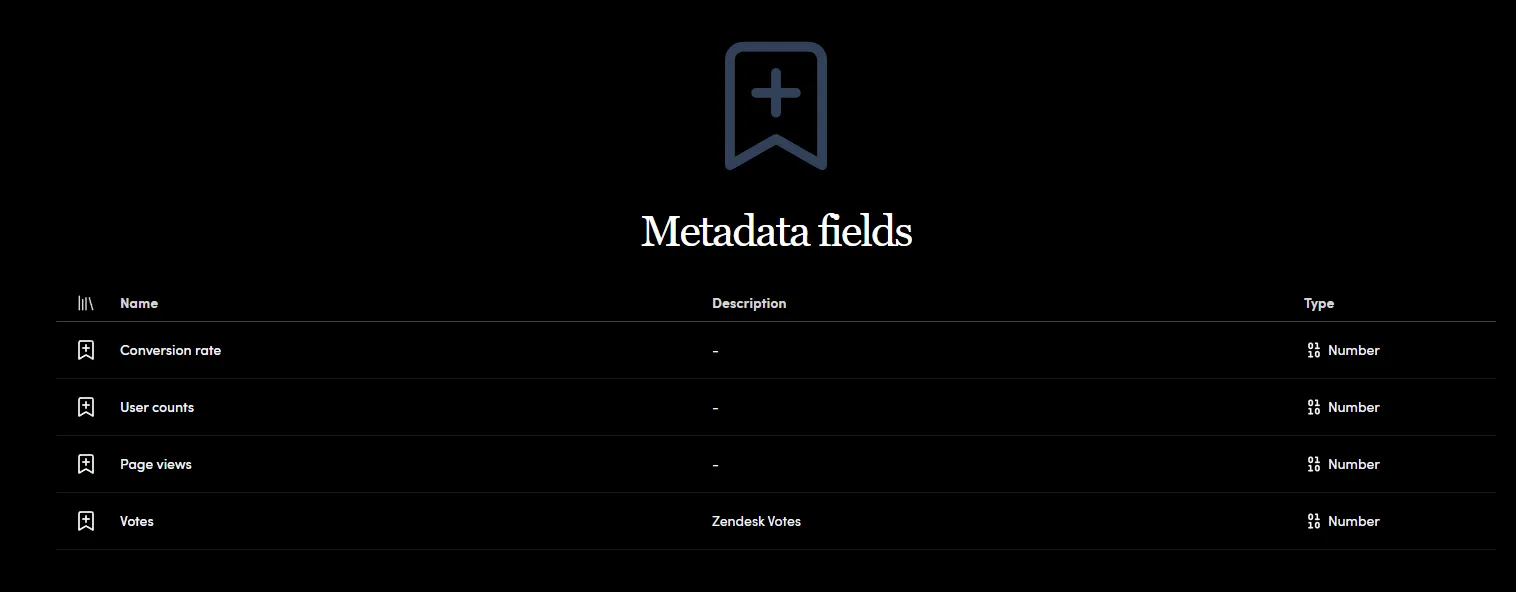
In the Metadata menu you can add Metadata fields. Currently supported metadata types are booleans, numbers and text. When defined in this interface, these metadata fields can be populated through Blackbird Actions. See the Blacklake App on how these Actions can be used.