

XTM
XTM Cloud is a translation management system for creating translation projects, managing multilingual files, and tracking work through localization workflows.
Before setting up
Before you can connect you need to make sure that:
- You have an XTM Cloud instance with API access enabled.
- You have a user with “Project manager” role. This role must be added even if user has an Admin role.
Connecting
- Navigate to apps and search for XTM. If you cannot find XTM then click Add App in the top right corner, select XTM and add the app to your Blackbird environment.
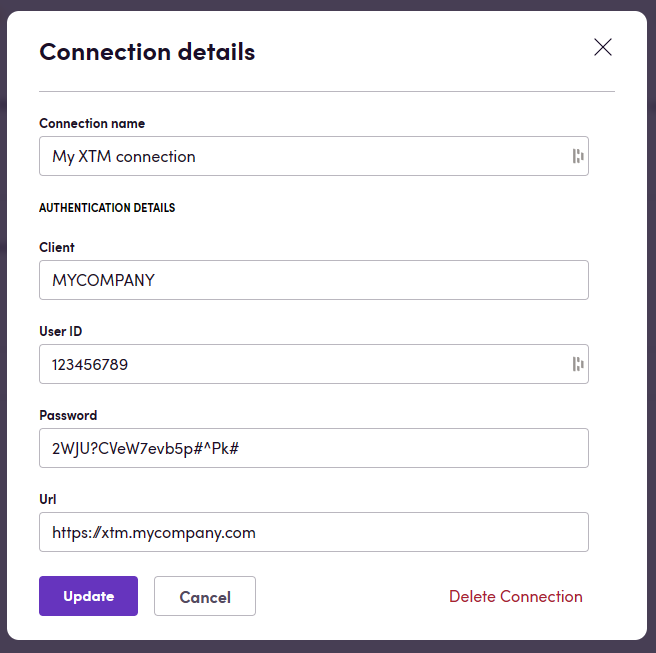
- Click Add Connection.
- Name your connection for future reference e.g. ‘My XTM’.
- For Client fill in your XTM company name, also marked client in the XTM documentation.
- For User ID fill in your numeric XTM user ID. Note: This is not your username. A known way to retrieve this user ID is to log into your XTM portal, hover on your avatar in the top right corner, and open the avatar image in a new tab. The URL of that image contains your user ID.*
- Fill in your XTM user password.
- Fill in the base URL of your XTM instance, for example
https://xtm.mycompany.com. - Click Connect.
* Do you know a better way to retrieve the User ID? Let us know!
Actions
Projects
- Search projects Search projects by name, status, activity, customer, or date filters.
Advanced settings:
- Project name: Filter projects by name.
- Status: Filter projects by status.
- Created from: Only include projects created on or after this date.
- Created to: Only include projects created on or before this date.
- Activity: Filter projects by activity.
- Customer IDs: Only include projects for the selected customers.
- Finished from: Only include projects finished on or after this date.
- Finished to: Only include projects finished on or before this date.
- Modified from: Only include projects modified on or after this date.
- Modified to: Only include projects modified on or before this date.
- Name must match exactly: Return only projects whose name exactly matches the project name filter.
- Get project Get details for a project.
- Create project Create a project.
Advanced settings:
- Due date: Set a due date for the project.
- Description: Add a project description.
- Project created callback URL: Use a custom callback URL when the project is created.
- Project accepted callback URL: Use a custom callback URL when the project is accepted.
- Project finished callback URL: Use a custom callback URL when the project is finished.
- Job finished callback URL: Use a custom callback URL when a job is finished.
- Analysis finished callback URL: Use a custom callback URL when project analysis is finished.
- Workflow transition callback URL: Use a custom callback URL when jobs move into workflow steps.
- Invoice status changed callback URL: Use a custom callback URL when invoice status changes.
- Create new project from template Create a project from an existing template.
- Clone project Create a new project from an existing project.
Advanced settings:
- Name: Override the cloned project name.
- Update project Update a project.
Advanced settings:
- Reference ID: Set an external reference ID.
- Payment status: Set the payment status.
- Proposal approval status: Set the proposal approval status.
- Project manager ID: Assign a project manager.
- Subject matter ID: Set a subject matter.
- Segment locking type: Control how segments are locked.
- Translation memory penalty profile ID: Set the translation memory penalty profile.
- Translation memory tag IDs: Add translation memory tags.
- Terminology penalty profile ID: Set the terminology penalty profile.
- Terminology tag IDs: Add terminology tags.
- Add project target languages Add target languages to a project.
- Delete project target languages Remove target languages from a project.
- Reanalyze project Reanalyze a project.
- Delete project Delete a project.
- Get project estimates Get estimates for a project.
- Download metrics Download a metrics file for a project.
- Get bundle metrics Get metrics for a bundle in a project.
Advanced settings:
- Job ID: Limit metrics to a specific job.
- Get project metrics Get metrics for a project.
Advanced settings:
- Target languages: Limit metrics to specific target languages.
- Get project completion Get completion details for a project.
- Get project status Get the current status of a project.
- Get project users Get users assigned to a project.
- Get project details Get completion, status, and estimate details for a project.
- Set project custom field Set a value for a project custom field.
Advanced settings:
- Text value: Set a text value.
- Date (ISO-8601): Set a date value.
- Boolean value: Set an option value.
- Multiselect IDs: Set multiple selected values.
- Get project custom field Get a project custom field.
LQA
- Search LQA reports Search LQA reports.
Advanced settings:
- Date from: Only include reports completed on or after this date.
- Date to: Only include reports completed on or before this date.
- LQA type: Limit results to a specific LQA type.
Files
- Generate files Generate files for a project.
Advanced settings:
- Target language: Generate files for a specific target language.
- Job IDs: Generate files only for specific jobs.
- Active workflow steps: Generate files only for jobs currently in the selected workflow steps.
- Include in extended table: Choose which fields to include in extended table outputs.
- Download source files as ZIP Download source files for a project or selected jobs.
- Download source files Download source files for a project or selected jobs.
- Download project file Download a generated project file.
- Download all project files Download project files.
- Download translated files Download translated files from a project.
- Upload source file Upload a source file to a project.
Advanced settings:
- Tag IDs: Apply tags to the uploaded file.
- Translation type: Set the translation type for the uploaded file.
- Metadata in JSON format: Attach metadata to the uploaded file.
- Reanalyse project: Choose whether to reanalyze the project after upload.
- Upload reference file Upload a reference file to a project.
Advanced settings:
- Override file name: Use a custom name for the uploaded file.
- Upload translation file Upload a translation file to a project and wait for processing to finish.
Advanced settings:
- File name overwrite: Use a custom file name for the uploaded translation.
- Segment status approving: Control how segment statuses are updated.
- Enable autopopulation?: Enable or disable autopopulation during import.
- Workflow step name: Specify the workflow step when autopopulation is disabled.
- Lock segments above threshold: Lock segments whose quality score meets or exceeds the threshold.
- Mark segments under threshold as not completed: Mark low-scoring segments as not completed before upload.
Translation memories
- Generate TM file Generate a translation memory file.
Advanced settings:
- Project ID: Generate the file from a specific project.
- Source language: Limit the file to a source language.
- Output file type: Choose the generated file type.
- Download TM file Download a generated translation memory file.
- Import TM file Import a translation memory file.
Advanced settings:
- TM status: Set the status assigned during import.
- TM status import type: Choose how TM status values are imported.
- Whitespaces formatting type: Choose how whitespace formatting is handled.
- Alt-Trans elements import: Choose how alt-trans elements are imported.
- Segments import type: Choose how segments are imported.
- Bilingual terminology action: Choose how bilingual terminology is handled.
- Tag group IDs: Assign imported entries to a tag group.
- Tag IDs: Assign tags within the selected tag group.
Customers
- Search customers Search customers.
- Create customer Create a customer.
Advanced settings:
- Nickname: Set a nickname for the customer.
- TM and Terminology only: Limit the customer to translation memory and terminology resources.
- Project watchers IDs: Add project watchers.
- Get customer Get details for a customer.
- Update customer Update a customer.
Advanced settings:
- Vat number: Set the VAT number.
- Delete customer Delete a customer.
Glossaries
- Export glossary Export a glossary.
Advanced settings:
- Main language: Set the main language for the export.
- Translation languages: Limit the export to selected translation languages.
- Columns to export: Choose which glossary columns to include.
- Domain: Limit the export to a domain.
- All languages: Include all available languages in the export.
- Import glossary Import a glossary.
Advanced settings:
- Purge terms: Remove existing terms before importing.
- Add to existing terms: Add imported content to existing terms.
Workflows
- Search workflows Search workflows.
- Search workflow steps Search workflow steps.
- Get workflow by ID Get workflow details by ID.
- Assign to workflow Assign users to workflow steps in a project.
Advanced settings:
- Type of user on a project: Choose the user type to assign.
- Languages: Limit the assignment to specific languages.
- Step names: Limit the assignment to specific workflow steps.
- Bundle IDs: Limit the assignment to specific bundles.
- Move jobs to next workflow step Move selected jobs to the next workflow step.
Advanced settings:
- Email notify: Choose whether to send email notifications.
- Current workflow step: Only move jobs that are currently in the selected workflow step.
- Start workflow in project Start workflow steps for jobs in a project.
Users
- Search users Search users.
- Get user Get details for a user.
Project templates
- Create project template Create a project template from a source project.
Advanced settings:
- Customer ID: Set the customer when creating a customer template.
- Search project templates Search project templates.
Templates
- Get template by ID Get template details by ID.
Subject matters
- Search subject matters Search subject matters.
System
- Get system Get system details.
Events
Note: XTM uses callback URLs that can only be set at the time of project creation, this means that only projects that have been created through Blackbird will work with non-polling Events. To trigger Birds based on Events regarding projects that were not created via Blackbird, use a polling trigger - identified below as polling.
Project activity
- On workflow transition Triggers when jobs move into active workflow steps.
Advanced settings:
- Project ID: Limit the event to a specific project.
- Project name contains: Limit the event to projects whose name contains this text.
- Customer name contains: Limit the event to projects whose customer name contains this text.
- Customer ID: Limit the event to a specific customer.
- Workflow step: Trigger only when jobs move into the selected workflow step.
- On workflow transition (manual) Triggers when jobs move into active workflow steps.
- On analysis finished Triggers when project analysis is finished.
- On job finished Triggers when a job is finished.
Advanced settings:
- Job ID: Limit the event to a specific job.
- On project created Triggers when a project is created.
- On project accepted Triggers when a project is accepted.
- On project finished Triggers when a project is finished.
- On invoice status changed Triggers when an invoice status changes.
Advanced settings:
- Invoice ID: Limit the event to a specific invoice.
- On projects created (polling) Triggers when new projects are created.
- On projects updated (polling) Triggers when projects are updated.
- On projects finished (polling) Triggers when projects are finished.
- On project status changed (polling) Triggers when a project’s status changes.
Advanced settings:
- Project status: Trigger only when the project changes to the selected status.
- On analysis finished (polling) Triggers when project analysis is finished.
- On workflow transition (polling) Triggers when new jobs appear in the selected workflow steps.
Advanced settings:
- Customer IDs: Monitor active projects for the selected customers.
- Project IDs: Monitor the selected active projects.
Note: “On workflow transition” and “On workflow transition (manual)” events have to add numbers without spaces when filtering by workflow step. For example, when step in XTM project workflow is named “Translate 1” then filter value should be “Translate1”. This filter is not case-sensitive.
Missing features
The current implementation covers the basic actions. However, in the future we can also support:
- Project analytics
- Custom fields
- Jobs
- External users
Let us know if you’re interested!
Feedback
Feedback to our implementation of XTM is always very welcome. Reach out to us using the established channels or create an issue.